
FOX
WorkEasy Software recognized as a Top 25 Global Work Tech Vendor. Work Tech Awards honor best-in-class vendors.
How GPS and geofence time clocks work, when to block or flag a punch outside a site, the controls to look for, and how to set one up in WorkEasy.
When crews clock in from job sites, client homes and trucks, a time stamp isn't enough. A time clock with GPS records where each punch happens. A geofence time clock checks each punch against a boundary around the site, then blocks or flags the ones made outside it before they reach payroll. Here's how GPS and geofence time tracking work, which controls to look for, and how WorkEasy handles them.
A GPS time clock records the location of every clock-in and clock-out along with the time. Managers see each punch as a pin on a map next to the timesheet, so they can confirm crews were on site without calling around or checking photos.
GPS time clocks come in three forms. The first is an app on each employee's phone, which uses the phone's location at the punch. The second is an app on a shared tablet that a whole crew clocks in on. The third is a portable hardware clock with GPS built in, which travels with the crew from site to site.
GPS time tracking gives you a record to review after the punch. Location on its own doesn't decide anything. If you want the system to act on a punch at the moment it's made, that's the job of a geofence. For a side-by-side look at the kinds of app on the market, see our guide to time clock apps.
Choosing how your crews clock in? Compare Xenio time clocks, including the two field clocks that record GPS with each punch.
A geofence is a virtual boundary drawn around a location on a map. A geofence time clock checks each punch against that boundary and either blocks punches from outside it or accepts them and flags them for a manager.
Depending on the system, the boundary is a circle around an address or a shape you draw yourself. A drawn shape can follow a long yard or stop short of the lot next door, which a simple circle can't.
Every geofence needs a rule for punches made outside it. The two settings suit different kinds of site.
Enforce blocks the punch. Use it at fixed sites where clocking in anywhere else is never right, such as a plant, a warehouse, a store or a single long-running job site. The crew starts at the same gate every day, so a punch from outside the fence is a mistake worth stopping at the punch rather than fixing on payroll day.
Allow and flag accepts the punch and marks it for a manager to review. Use it for crews who sometimes start the day somewhere else, such as picking up material at a supplier, meeting at a second site or driving straight to a client's home. Blocking those punches would stop people clocking in for real work, and their hours would get fixed by hand later. A flag keeps the record complete without getting in anyone's way.
Look for geofence time tracking that sets the rule per group, so the plant crew can run on enforce while the service techs run on allow and flag. A flag only helps if someone reviews it before payroll, so decide who that is before you switch flags on.
GPS and geofences answer different questions. GPS records where a punch happened. A geofence decides what happens to a punch made outside a site.
| GPS time clock | Geofence time clock | |
|---|---|---|
| What it does | Records where each punch happened | Checks each punch against a site boundary |
| When it acts | After the punch, when you review the map | At the punch, when it blocks or flags it |
| Best for | Crews that move between many sites | Fixed or repeat sites with clear boundaries |
| Set-up | Turn on location for a group | Draw a boundary around each site |
The two work together. GPS gives you a record of every punch, and geofences on your main sites act on punches as they happen.
Look for a time and attendance platform whose mobile app records GPS location on every clock-in and clock-out and lets you draw geofences around each work site. The key control is what happens outside the fence. A good platform lets you choose per group whether to block the punch or allow it and flag it for a manager. Check that the same rules cover shared kiosk tablets, that web clock-ins can be limited by IP address, and that location is captured only at clock-in and clock-out rather than tracked all day.
In WorkEasy, geofences are drawn on a map, and mobile clock-ins can be set to block punches outside them or to allow and flag them. The mobile app records location with each clock-in and clock-out. The Time Kiosk App can require location with each punch or make it optional. Web clock-ins can be limited by IP address, and both field clocks record GPS location with punches made on the device.
| Control | Why it matters | In WorkEasy |
|---|---|---|
| GPS on every clock-in and clock-out | A record of where each punch happened | Yes, in the mobile app and the two field clocks, and in the Time Kiosk App when location is required |
| Geofences drawn on a map | Boundaries that match the real site, not just a radius | Yes. Search an address, city, ZIP code or coordinates and draw the area |
| Enforce or allow and flag | Strict where needed, flexible where crews move | Yes, for mobile clock-ins, set in Reporting Hours |
| Location required or optional on shared tablets | Covers crews clocking in at one tablet | Yes, in the Time Kiosk App on iOS and Android tablets |
| IP address limits for web clock-ins | Keeps web punches to approved networks | Yes, deny or allow and flag |
| Device lock for mobile | Keeps each mobile clock-in tied to one phone | Yes, mobile clock-ins can be limited by device IMEI or device ID |
| Location only at punch time | Respects employee privacy | Yes, recorded with each clock-in and clock-out |
The WorkEasy column follows WorkEasy's help center, except the field-clock entry in the first row, which comes from WorkEasy's product information.
The right way to clock in depends on where people work, not on the trade they're in. WorkEasy has four ways to clock in with location controls, and each one fits a different kind of site.
Employees clock in on their own phones, which suits field service techs, home care staff, cleaning crews and anyone who starts the day at a different address. As a GPS time clock app, the WorkEasy mobile app records the employee's location with each clock-in and clock-out once geolocation is turned on, and managers see each punch on the timesheet map. Geofences around your sites can block punches made outside them, or allow and flag them. To keep each mobile clock-in tied to one person's phone, mobile clock-ins can be limited by device IMEI or device ID. The GPS time tracking app runs in the same time and attendance software where hours get approved before they sync to the payroll provider you already use.
One iOS or Android tablet at a site with power and an internet connection gives a whole crew one place to clock in, without anyone using a personal phone. The Time Kiosk App can require location with each punch or make it optional. A tablet suits a site that stays put for weeks or months, such as a store, a clinic, a site trailer or a long job. The Web Kiosk, which runs in a browser, doesn't support geolocation, so a shared device that needs location on every punch should run the Time Kiosk App.
For office and hybrid staff who clock in from a computer, GPS adds little. Web clock-ins don't record GPS location, so WorkEasy limits them by IP address instead. Approve your office network's addresses, then choose whether a web punch from anywhere else is denied, or allowed and flagged for review.
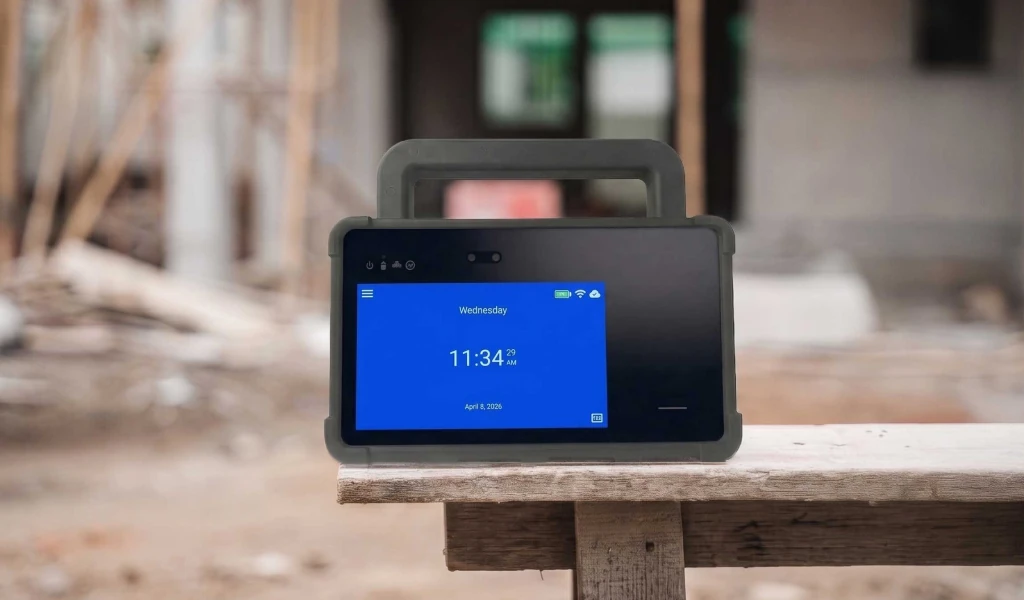
Some sites have no wall to mount a clock on and no mains power. For a dedicated clock at each of those sites, WorkEasy's two field clocks, the mobile time clock for job sites and the portable time clock, run on battery and 4G LTE. Both record GPS location with punches made on the device, and both support geofencing. Both are dustproof and water resistant, so they can stay out on an open site with the crew.
The mobile time clock reads faces, through hard hats and PPE. The portable time clock is shock-resistant and offers face, palm, fingerprint, card and PIN in one unit. Choose between them by the conditions on the site, not by the trade.
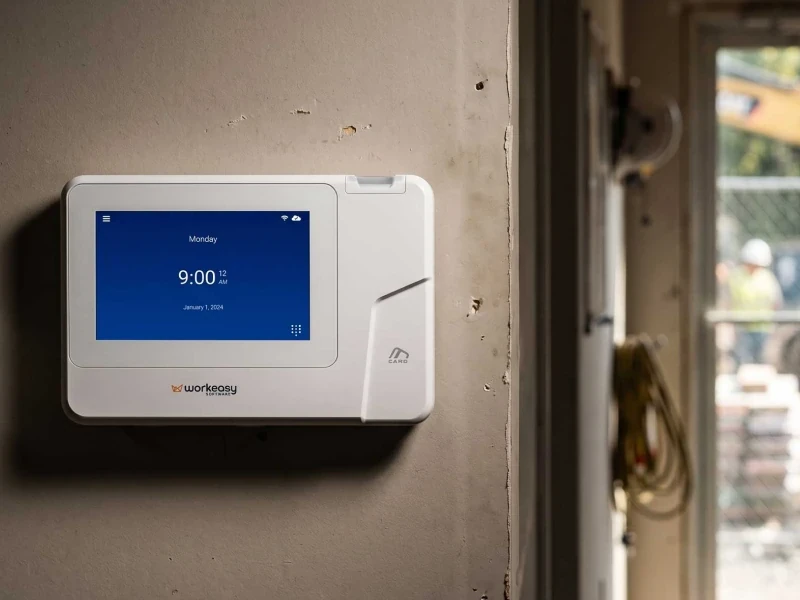
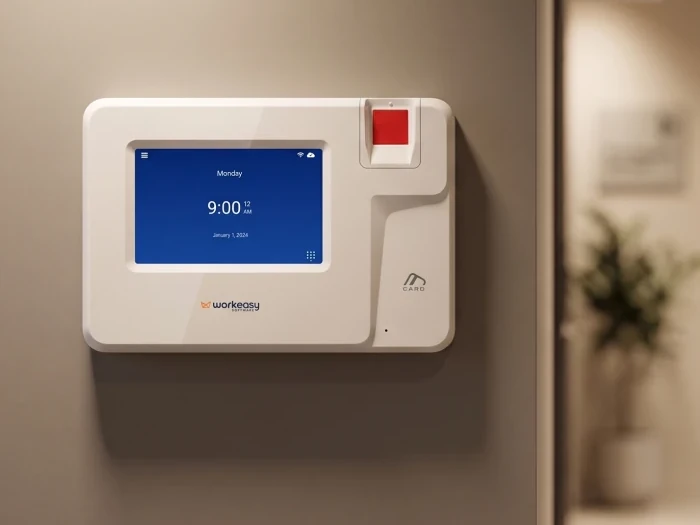
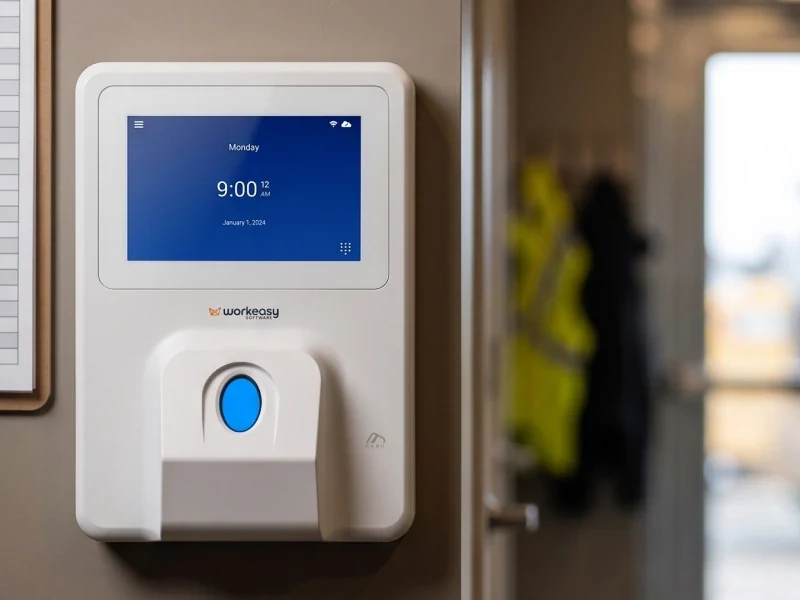
Wall-mounted Xenio clocks stay at one site, with a wall, power and a network at the punch point, so they don't need GPS. Their location is the site.
The steps below follow two articles in WorkEasy's help center, Set Up a Geofence and Configure Geofence Enforcement in Reporting Hours.
These settings cover mobile clock-ins. The Time Kiosk App's location setting, required or optional, is set separately for kiosk clocking.
Location data at work only helps if the people it describes trust it. Three habits keep it that way.
Done this way, employee location tracking gives the crew a record too. When a punch gets questioned, the map shows the person was where the work was. For the legal side, see the question on it in the FAQ below.
Short answers to the questions that come up most often.
A GPS time clock records the location of each clock-in and clock-out along with the time, so managers can see where every punch happened. GPS time clocks include mobile apps that use the phone's location, and some portable hardware clocks have GPS built in. The location can appear as a pin on a map next to the timesheet entry. In WorkEasy, turning on geolocation records the employee's location with each mobile app clock-in and clock-out and shows it on the timesheet map.
A geofence time clock checks whether an employee is inside a virtual boundary drawn around a work site before it accepts a punch. If someone clocks in outside the boundary, the system either blocks the punch or accepts it and flags it for review, depending on how it is set up. With a geofence, a punch made in the parking lot, at home or at the wrong site doesn't reach the timesheet unchecked. In WorkEasy, geofences are drawn on a map, and mobile clock-ins can be set to enforce them or to allow and flag.
Not necessarily. A GPS time clock can capture location only at the moment an employee clocks in or out, with nothing recorded during the shift. Continuous tracking is a separate feature, found in some vehicle and field-service tools. Check how a vendor collects location before you roll it out, and tell employees what is recorded. WorkEasy records location with each clock-in and clock-out, not between punches.
Rules on employee location vary by state, especially for tracking vehicles, so check the rules where you operate with counsel before you switch it on. Alongside that, a written policy that says when location is collected and why, shared with employees before the first punch, is a practical place to start. This answer is practical guidance, not legal advice.
WorkEasy Software in the news
Learn what the news media is saying about WorkEasy Software products and service.
WorkEasy Software recognized as a Top 25 Global Work Tech Vendor. Work Tech Awards honor best-in-class vendors.

WorkEasy Software powers game-changing teams with surprisingly easy technology in mission-critical areas.

Work Tech Awards honor top vendors worldwide whose efforts exemplify what Inspiring Workplaces calls “real impact.”

WorkEasy Software recognized as a Top 25 Global Work Tech Vendor. Work Tech Awards honor best-in-class vendors.

Work Tech Awards honor top vendors worldwide whose efforts exemplify what Inspiring Workplaces calls “real impact.”

WorkEasy Software powers game-changing teams with surprisingly easy technology in mission-critical areas.

WorkEasy Software powers game-changing teams with surprisingly easy technology in mission-critical areas.


